 Library
 Vicky Mason
 515
515
The new term is here…
You’ve met with your academics and you are getting ready for your first semester at Canterbury Christ Church University. You’ve been told you can find many of your course books in the library. But you can’t help but wonder…how are you going to go about finding a few books among thousands?
Well, if you read on we have composed a handy guide to finding those all-important books and resources.
Introducing LibrarySearch
Step 1 – Find the item on LibrarySearch
First you’ll need to find the book you need on LibrarySearch, the University’s library catalogue and online discovery tool for books, journals, e-books, e-journals and, much more!
To help you a link to LibrarySearch is located in the “My CCCU Experience” section of the popular tasks as below:
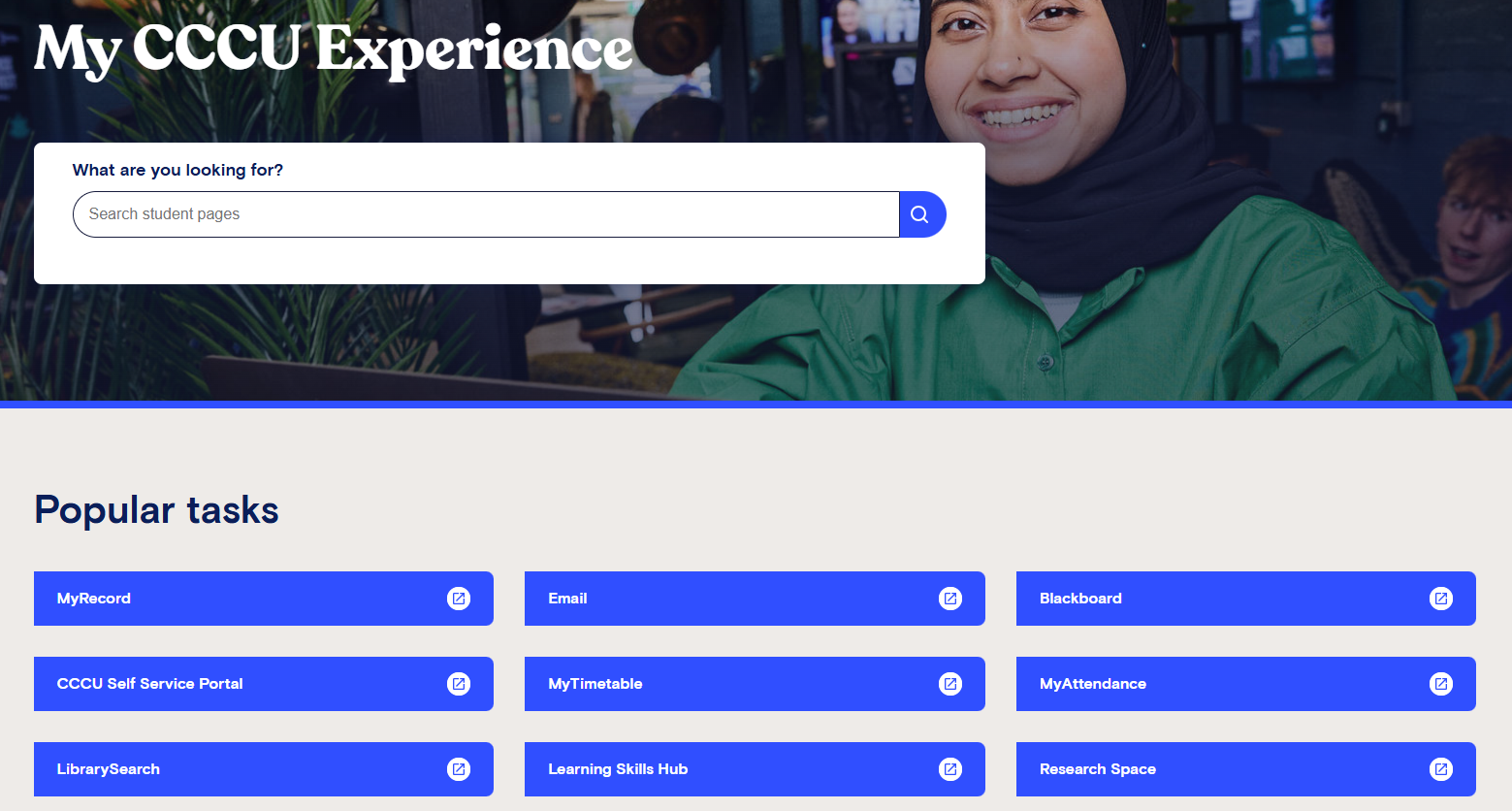
My CCCU Experience webpage
LibrarySearch is easy to use, all you need to do is enter the author’s last name and a few words from the title to find a specific book. Alternatively, if you are looking for a book in a specific subject area, just enter some keywords to describe your subject.
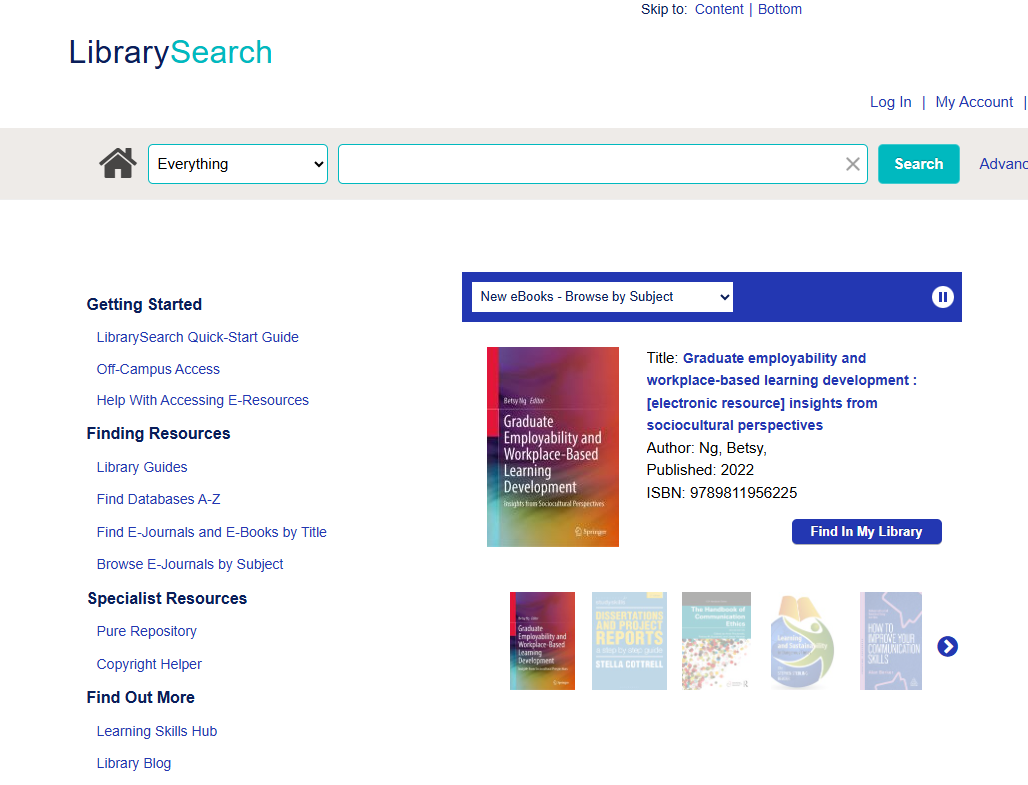
LibrarySearch main search screen
You can use LibrarySearch to check the availability and location of items before your arrival. LibrarySearch terminals are located on all floors of Augustine House Library.
Introduction to LibrarySearch at CCCU
Take a peek at the video below, ‘Introducing LibrarySearch, created by the Learning Skills Team which gives you an insight into how you use LibrarySearch
Introduction to LibrarySearch. Video available YouTube channel Canterbury Christ Church University Libraries
Step 2 – Note down the Classmark
Once you have found the book that you are looking for on LibrarySearch, click on the title to see if there is a copy available, and make a note of the classmark. The classmark is a series of numbers followed by three letters, which is the start of the author’s last name or the book’s title,
For example: Cottrell, S. (2013) The study skills handbook. Basingstoke: Palgrave. Has the classmark of 378.170281 COT
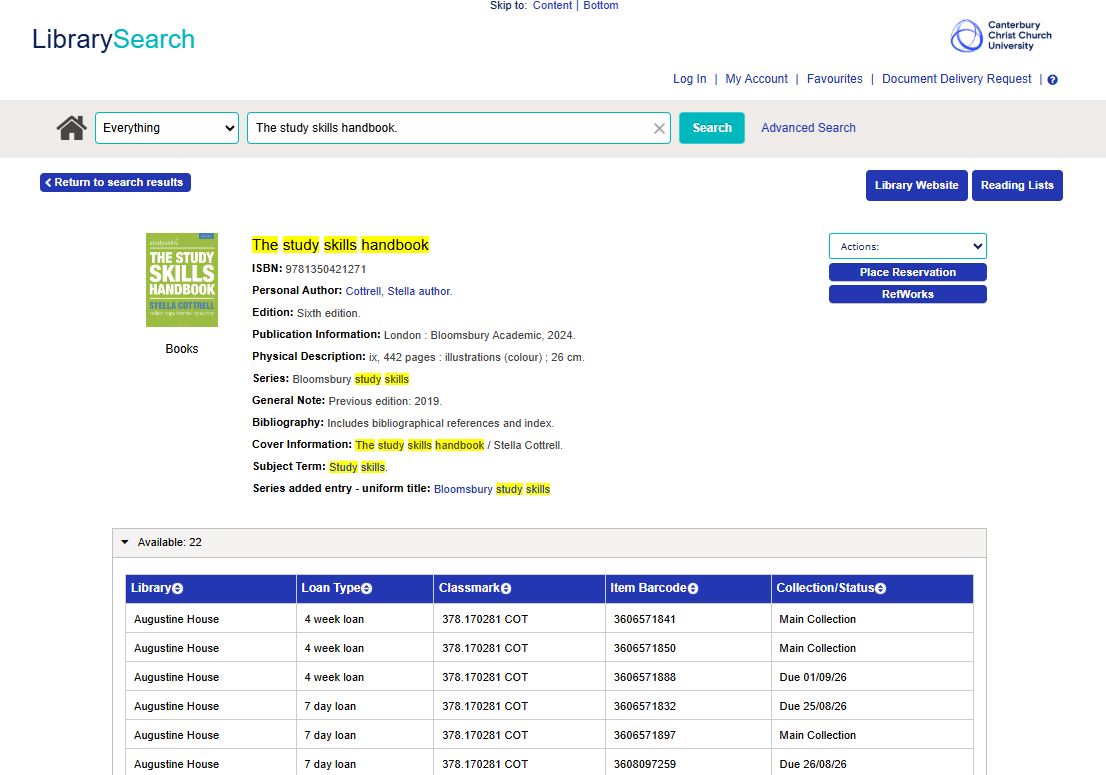
Item details screen on LibrarySearch
Need further help getting started with LibrarySearch? We have a handy quick-start guide.
Step 3 – Check the loan period
As well as the classmark, you’ll need to know the loan period of the item. The information is held in the loan type column in LibrarySearch.
It may not seem important at first glance but knowing the loan period of the books you are looking for, determines what shelves they will be on in Augustine House. The 7-day loans will be found on the open shelves all down the room on floors one, two and three. Whereas the 4-week loan books are on the moving shelves at the back of floors one, two, and three.
Using the moving shelves at Augustine House Library
Below is a quick guide, using the moving shelves at Augustine House Library, Canterbury:
Using the moving shelves accessed via YouTube, Canterbury Christ Church University Libraries.
For items from Salomons Institute Library and Drill Hall Library, books are interfiled but it’s always worth knowing how long you can loan your book for, so please check before you leave.
Step 4 – Understanding the classmark
Now that you know the classmark and the loan period of the books you’re looking for, you are almost there. The final step is to use that classmark to find the items on the shelves.
Classmarks are signposted at the end of each bookshelf, and each book has a sticker with its classmark on the spine. The bookshelves will be in numerical order and in Augustine House, the sequence goes up from floors one to three. For example: floor 1 is 000-329, floor 2 is 330-599, and floor 3 is 600-999.
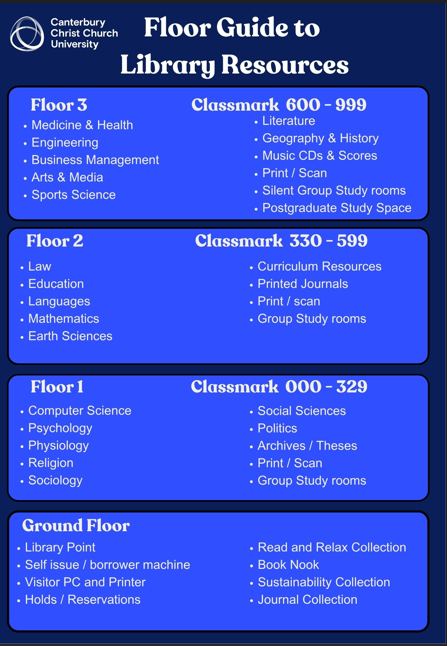
Floor guide of all floors with classmark and corresponding subject area
Once you have found the shelf, look at the numbers on the classmark and match them with those on the book. All the books with the same number are then filed alphabetically based on the last three letters on the classmark. Still confused? This visual guide might help.
A different classification system is used at the Salomons Institute Library but the methodology of finding books is very similar. At Salomons you’ll still need to follow the books in alphabetical and numerical order.
By following these steps you should have found your book! Now you can borrow the book and get studying.
Still need help?
However, if you still can’t find your book after following these steps just visit the Library Point at any of our libraries for help. At Medway, ask a member of staff at the Helpdesk near the library entrance.
Help pods
At Augustine House you can also use the phones which are located on floors 1 and 2. Or you can scan the QR Code available at the help pod on floor 3.
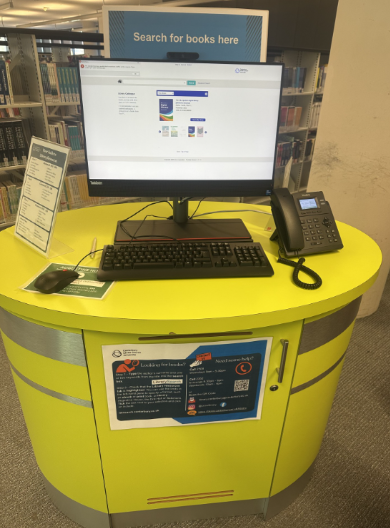
Help pod at Augustine House Library, Canterbury. Second Floor Collaborative Zone.
Get started with ‘Using LibrarySearch’ module
Using LibrarySearch is one of the getting started modules in the Learning Skills Hub.
The module will help you:
- Find resources on a topic
- Find and access books and journal articles from your reading list
- Manage your results using the refining and favourites functions
- Discover resources available for your subject
The main Featured Image is a copyrighted image owned by Canterbury Christ Church University adapted for this blog by the author.


