“LibrarySearch lets you find the resources you need for your study and research”.
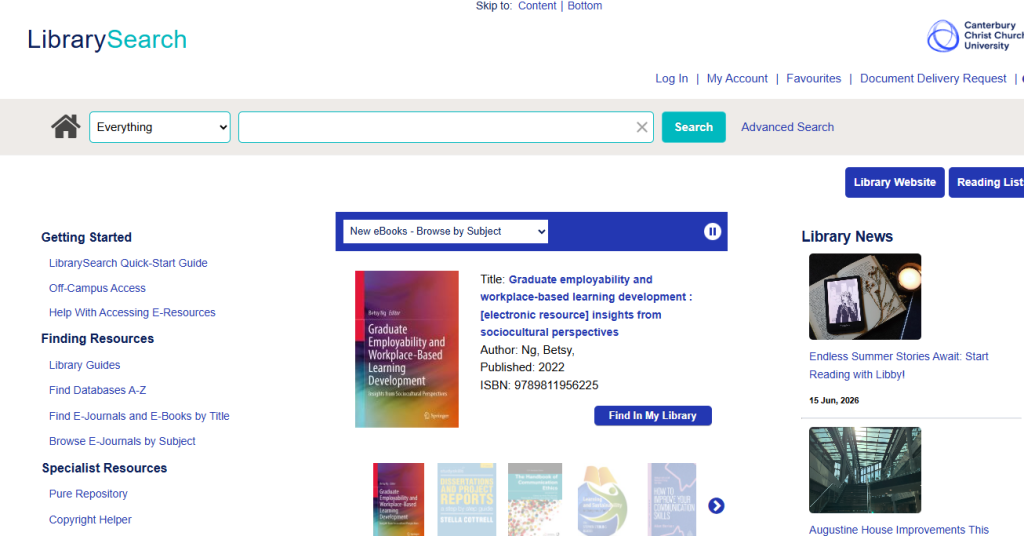
LibrarySearch homepage
(1) Login with your CCCU username and password
Make sure you’re logged into LibrarySearch. Once you’re logged in you have access to full text online resources.
2) Keep your search terms simple
Avoid typing a full essay title into the search box. Think of a few keywords and concepts.
(3) Library Resource and Digital Resource tabs
Your results are automatically sorted into two lists. Your books/e-books within one list and your CCCU Online resources in another. This enables you to jump between the two tabs which will display at the top of your search results.
Image above taken from LibrarySearch
Library Resources– will list your books, print journals and e-books.
Digital Resources – will list e-books, e-journals, newspapers, conferences, notes, reports and more
You’ll need to check both tabs for e-books.
(4) View Content button
To open the text of the e-journal select the blue “View Content” button then open “Access Content” button.
(5) Narrow your Search Results
Do you have too many results? You can refine your search by using the side panels (Left side of the page) You can filter the results by year, full text, source type, campus library, publisher, author and more.
(6) Save references to your Favourites
You can save Favourites in LibrarySearch for future reference!
Make sure you’re logged into Library search for Add to Favourite feature.
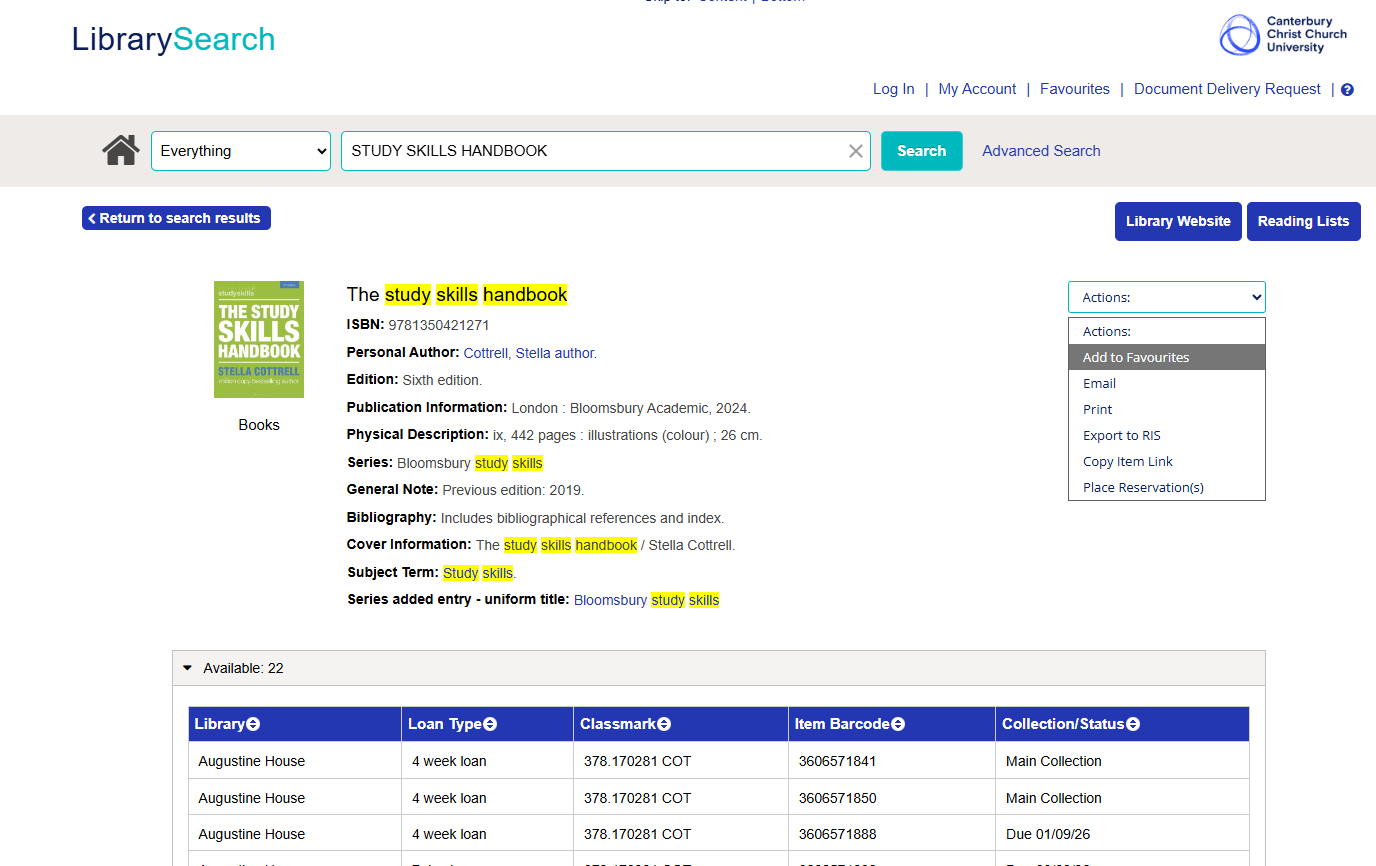
LibrarySearch results page
7) Click on the book title in LibrarySearch to see where the book can be found in the library
Make sure you click on the item to open the next screen to find out where the book can be found on the library shelves!
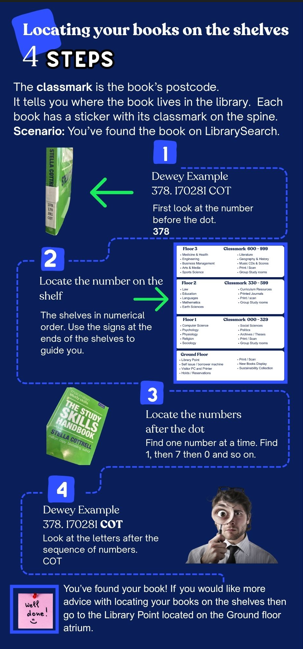
Classmarks
To find out more about a classmark, take a look at the infographic below:
Four steps to locating your books on the shelves. Infographic created on Canva 2025.
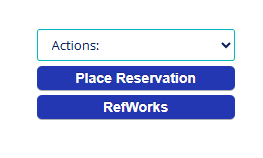
(8) Use the place reservation button to reserve a book
If the book is currently on loan to another student or only available at another campus you can request a reservation on the item by clicking on the ‘Place Reservation’ button. Just make sure you’re logged into LibrarySearch!
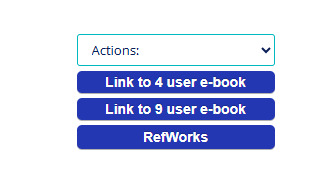
(9) Click on the blue “Link to CCCU e-book” button to open an e-book
To open an e-book just click on the ‘Link to CCCU e-book’ button.
(Just make sure you’re logged into LibrarySearch otherwise you wouldn’t be able to use this feature).
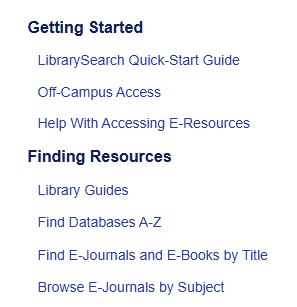
(10) Use Find e-journals and e-books by title and Find Databases A-Z to find more resources
We have created guides for the most used databases which are the red ‘Guide’ buttons next to the resource.
Learn about the new tools added to LibrarySearch to help you Discover resources. 2025.
Want to know more about LibrarySearch?
Learning Skills Hub
Click on the image below, Using LibrarySearch. Accessible via The Learning Skills Hub ‘Searching for books, journal articles and a topic with LibrarySearch’
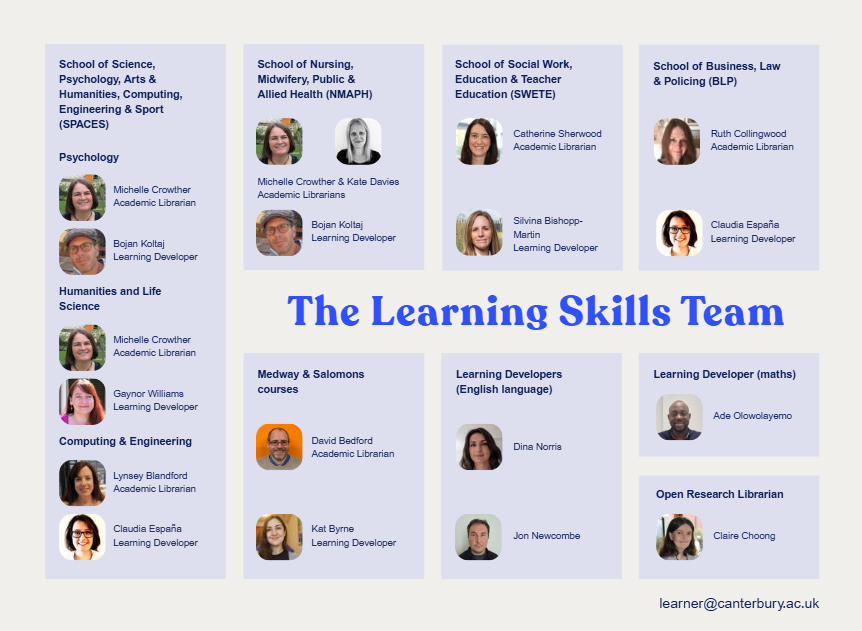
Learning Skills Team
Don’t forget, for help. You can also contact your Academic Librarian for support through the Learning Skills Team webpage.
 Library
 Vicky Mason
 28
28